
Ask a Question, Get an Answer: Class & Camp Reporting Simplified


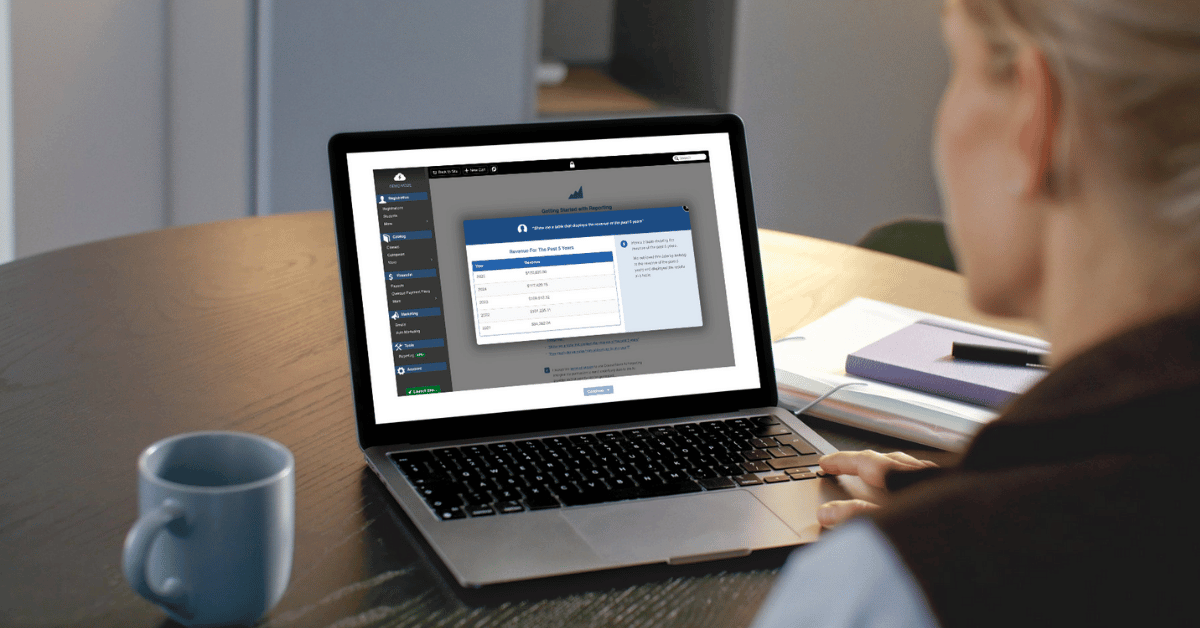
Have you ever had a moment of panic racing to fill out a grant application or gather specific data for a board member? You know the one: When you realize that answering a seemingly innocuous question will lead you into "Excel Hell" and result in you spending your evening looking up what a pivot table is?
What if, instead, you had a person on staff you could "just ask"? You know, just ask your question and get an answer. Better yet, get an answer and be able to see how the person came up with that answer. Or maybe even ask a follow up question and get even more useful insights from your data. Wouldn't that be nice?
Well, now you can and you don't have to post to Indeed to find them. With CourseStorm, you can truly just ask your question to our Reporting Assistant and get the answer, powered by the latest in AI technology.
“Just Ask” Reporting: Why it’s better and how it works
A lot of education reporting tools promise easy insight, but the reality often looks a lot like this:
- A set of rigid, pre-built reports that don’t quite answer your question
- A maze of checkboxes to build a custom report
- The quiet realization that you’ll probably need to export everything to Excel anyway
Add in formulas, pivot tables, and the need to train staff on a system only one person really understands, and suddenly answering a simple question feels… not so simple.
CourseStorm’s Reporting Assistant offers a better approach to reporting. Instead of clicking through menus or wrangling spreadsheets, you can just type your question and get an answer.
.png)
No pre-built report limitations. No advanced Excel skills required. Just ask, dialogue, and get actionable answers. With CourseStorm, you’re not “running reports”, you’re having a conversation with your data to get to the most useful insights.
The biggest benefits?
1) Simplicity: Whatever insight you’re looking for, you can ask for it in plain language. Questions like:
- How many returning students have we had this year?
- How does our student base break down by age or gender?
- What’s the most common time of day for a new registration?
- How much did we give out in scholarships last year?
2) Flexibility: Because we know every organization’s reporting needs are unique, you’re not boxed into standard reports. The Reporting Assistant can flex across all kinds of questions as your needs evolve, from marketing to day-to-day operations.
How does it work?
The Reporting Assistant is powered by OpenAI (maker of ChatGPT). It can analyze most CourseStorm data, including Students and Student Fields (custom registration fields), Registrations (including instructor names, location names, dates of classes, and promo code used), Transactions (charges, refunds, and fees), Catalogs, Classes, Class Sessions, Payouts, Payment Plans, Instructors, Locations, Attendance and Membership.
When a question is asked, the Reporting Assistant analyzes your data and responds with a visualization as well as an explanation for its answer in the chat panel. Data can be displayed as lists, charts, or graphs. If you want to see a different visualization or if you want to make other adjustments, all you have to do is ask. You can sort, add or remove values or columns, update the chart title or colors, and more.
For every answer provided, you can export the underlying data as a CSV if needed. And you can save your most common reports to your reporting home screen for easy access at any time.
CourseStorm’s Reporting Assistant is built for real-world education teams who need answers fast. It gives you the flexibility your organization needs, in the simplest format possible, so you can spend less time pulling reports and more time acting on what you learn.
How to get the best answers
Because “Just Ask” Reporting is a conversational tool, you’ll get the best results by “talking” to them. Imagine the tool is a data analyst on your team. Start by asking an initial question. Then, as you would with a staff member, dig in as needed with additional follow-up questions and/or directives to get to the exact insights you’re looking for. Let’s go through a few examples.
Example #1: Marketing
Let’s say you’re hoping to increase signups for your Fall classes this year. You decide to focus on re-engaging former students who’ve gone quiet with a targeted campaign, maybe a limited-time offer or a “we miss you” email.
First, you need a list of students to target. So you turn to CourseStorm’s Reporting Assistant. You type:
“Give me a list of students who haven’t registered in the past 90 days.”
.png)
The Reporting Assistant pulls the data and displays a clean, usable table of results.
As you look at the table, you realize this would be perfect for a multi-channel campaign. Email is covered, but you’d also love to include SMS. Instead of starting over, simply follow up:
“I also need the phone number shown in this table.”
The report updates to include phone numbers alongside email addresses. No checkbox hunting, no re-exporting, no friction.
Now you’re ready to put this list to work. You want to upload it into your email marketing tool and build a segment for outreach, but you don’t need internal system IDs cluttering things up. One more prompt does the trick:
“Please create a downloadable CSV of the working data behind this report, excluding any ID columns.”
The file is generated, ready to download, and ready to use. That’s the flow. Ask a question. See the answer. Refine it. Export it. Now, let’s look at another example.
Example #2: Day-to-day operations
Most CourseStorm users are wearing multiple hats and juggling multiple programs, classes, and camps; they don’t have time to hunt through rosters or cross-reference spreadsheets just to answer practical, time-sensitive questions. This is where the Reporting Assistant becomes a true operational sidekick.
Imagine you’re running several day camps and want to make sure the staff prepping meals have exactly the information they need. No more, no less. You’re thinking ahead to next week and want a clear picture of any dietary considerations.
You turn to CourseStorm’s Reporting Assistant and start with a simple question:
“Show me students with dietary restrictions in next week’s camps.”
Almost instantly, you get a table that surfaces the relevant students and their dietary notes, pulled directly from your registration data.
As you review the results, you realize you need more information. The kitchen team needs to know which camp each student is in and who’s running it, so they can coordinate delivery and timing. So you ask a follow up:
“I also need camp name and instructor name shown in this table.” The report updates on the spot, adding exactly the details you need to turn data into action.
Example #3: Grant reporting
Many of the organizations we work with rely on grants for at least some funding. Grant applications often require detailed data, things like student demographics, financial performance, geographic reach, etc. With “Just Ask” Reporting, it becomes way simpler to track down this information so you never miss an application deadline.
Imagine you’re working on a grant application to help fund your education program. One of your goals is to show that your program serves students from underserved groups in your community, and that participation among these students has been growing.
You collect this information as part of the registration process so you turn to CourseStorm’s Reporting Assistant with an initial request:
“Show me a pie chart of the ethnic groups represented among students over the past three years.”
The Reporting Assistant returns a pie chart with a breakdown of student ethnic groups by percentage. You can quickly see which groups have been most represented over the past three years.
But you want to show more than representation, you want to show growth over time. You want to see the number of students served and how participation has changed over the past three years. So you ask a follow-up:
“Show me the total number of students from each ethnic group for each of the past three years as a stacked bar chart.”
Now you can see year-by-year counts that are easy to reference in your application.
You also want to show depth of participation for a particular group, not just reach. So you dig a little deeper with another question:
“For students from [specific ethnic group], how many classes did they enroll in each of the past three years? Please show this data as a bar graph.”
With a few follow-up questions, you can explore your data to get to the information you need for a compelling grant application. No spreadsheets. No last-minute scrambling. Just clear answers you can use to meet the deadline with confidence.
A better way to understand education program data
CourseStorm’s AI-powered Reporting Assistant is a simpler way to get actionable answers from your data. You ask a question. You get a clear response. No complicated setup, no digging through reports, no spreadsheets unless you actually want them.
These answers will help you run better marketing campaigns, handle day-to-day logistics with less stress, and respond confidently to board questions, grant requirements, and funding requests. When reporting is easy, data becomes something you actually use, instead of an intimidating black box.
The promise is simple: Spend less time wrestling with reports and more time putting insights to work.
Want to learn more about how CourseStorm's "Just Ask" reporting tool and other features can make your life easier? Get your free demo today.


Save time and grow your impact with CourseStorm

